Pixel 8 Magnifier
Made by Google
Download Magnifier
Project Overview
🚀 What it is
Use your Pixel's camera to magnify small text, read menus, or zoom in on far-away text like signs behind a service counter or street signs.
🔍 Objective
Design a magnifier app with and for the low-vision community.
✅ What made it different
Co-designed with users with low vision, we leveraged powerful Pixel hardware and Google technology to deliver a fast, private, and robust experience, elevated to the helpful and premium standards of the Made by Google brand.
Contributions
UX Design Lead — collaboration with hardware org on accessibility innovation.
Used insights and participated in ongoing studies to iterate on v1 features.
Designed for users with low vision and limited dexterity.
Guided cross-functional teams on best practices (UX, i18n, & a11y).
Developed storytelling for launch campaign.
Designed instructional Play Store overview images and app iconography.
“Finally, a magnifier that’s reliable, private, and doesn’t drain my battery. It feels like it was built just for me.”
Problem & Context
Core Challenge
People with low vision showed us how they already used and relied on their phone cameras to see signs or read the small print. It’s fast, familiar, and a strongly formed habit. Pixel Magnifier had to offer enough value to make breaking that habit feel worthwhile.
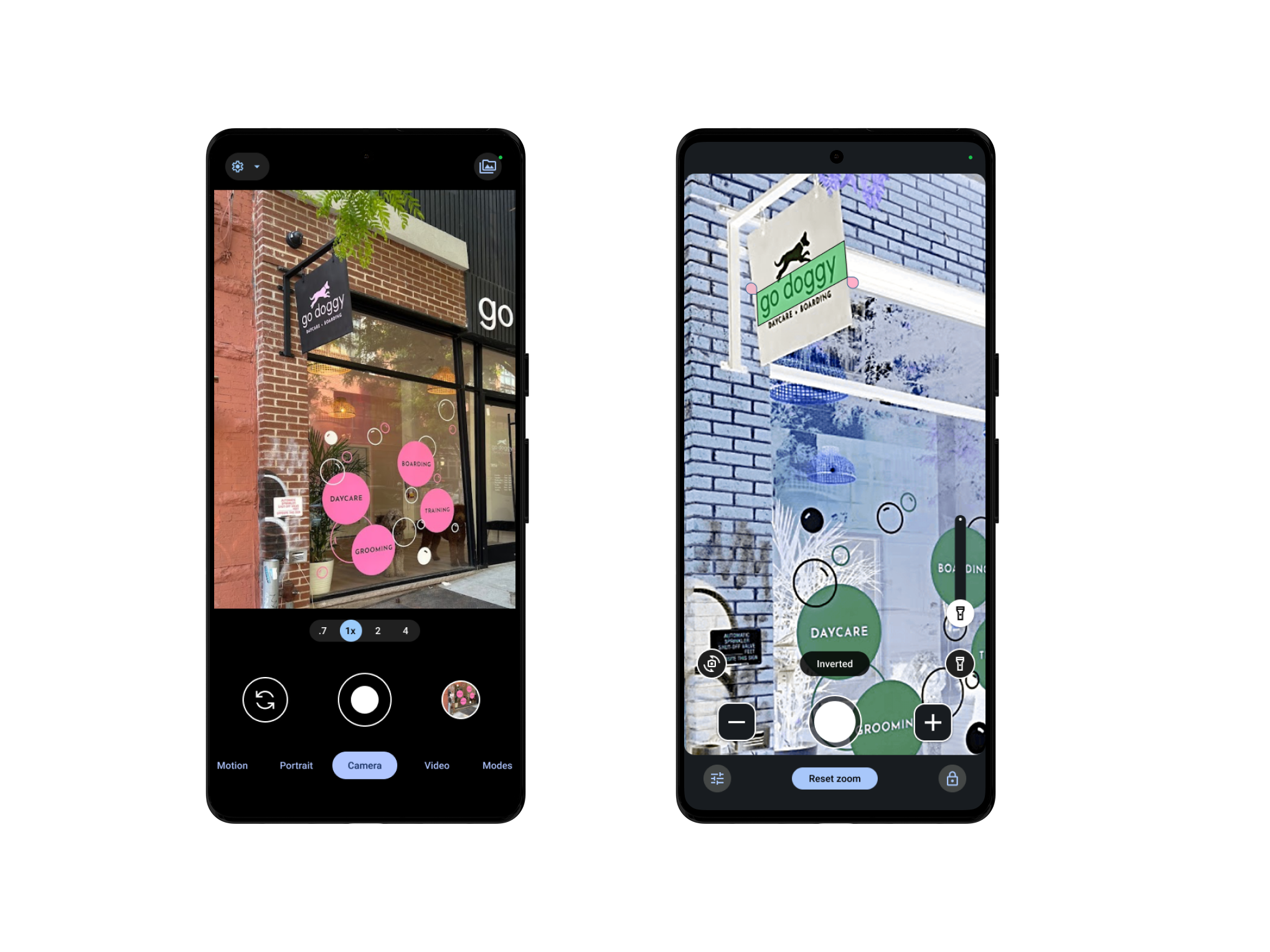 Camera vs. Magnifier: Magnifier launches with inverted filters already on and all controls at hand — large, easy to reach, accessible, and purpose-built for ease of use.
Why it mattered
With hundreds of third-party magnification apps available, there was still a critical gap in assistive tools on Android, especially on Pixel devices. Magnifier filled that gap with a purpose-built, Made by Google experience.
Strategic Highlights (my identified focus areas for strategic framing):
- 🚀 Assistive tech is a must for Google’s flagship devices
- 👁 Optimizing for people with low vision serves everyone
- 💎 Robust tools that work offline and don’t break
- 🔒 Deliver advanced tech while preserving user privacy
- 📱 Pixel’s innovation and quality should include accessible features
“I already use my camera to read stuff. Why would I need a separate app that also accesses my photos? I don’t trust those third-party tools with my privacy.”
User Journeys & Key Insights
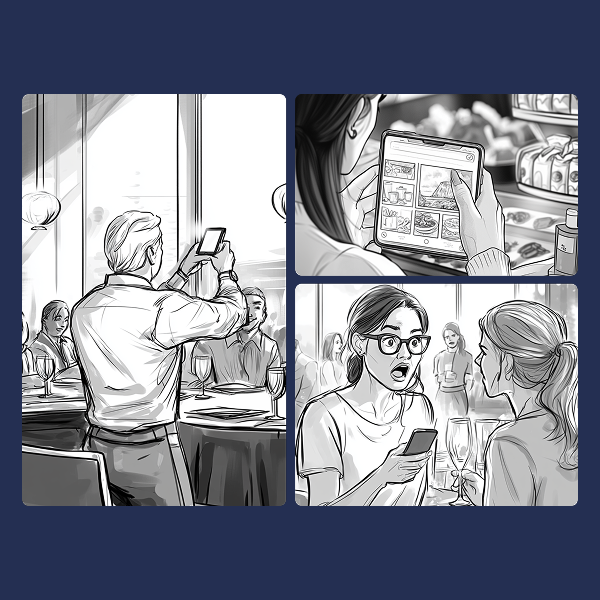
Through storyboarding I wove together a meta persona user journey. I used real user quotes to pinpoint exactly where users’ default camera use and workarounds fall short across themes and documented key insights.
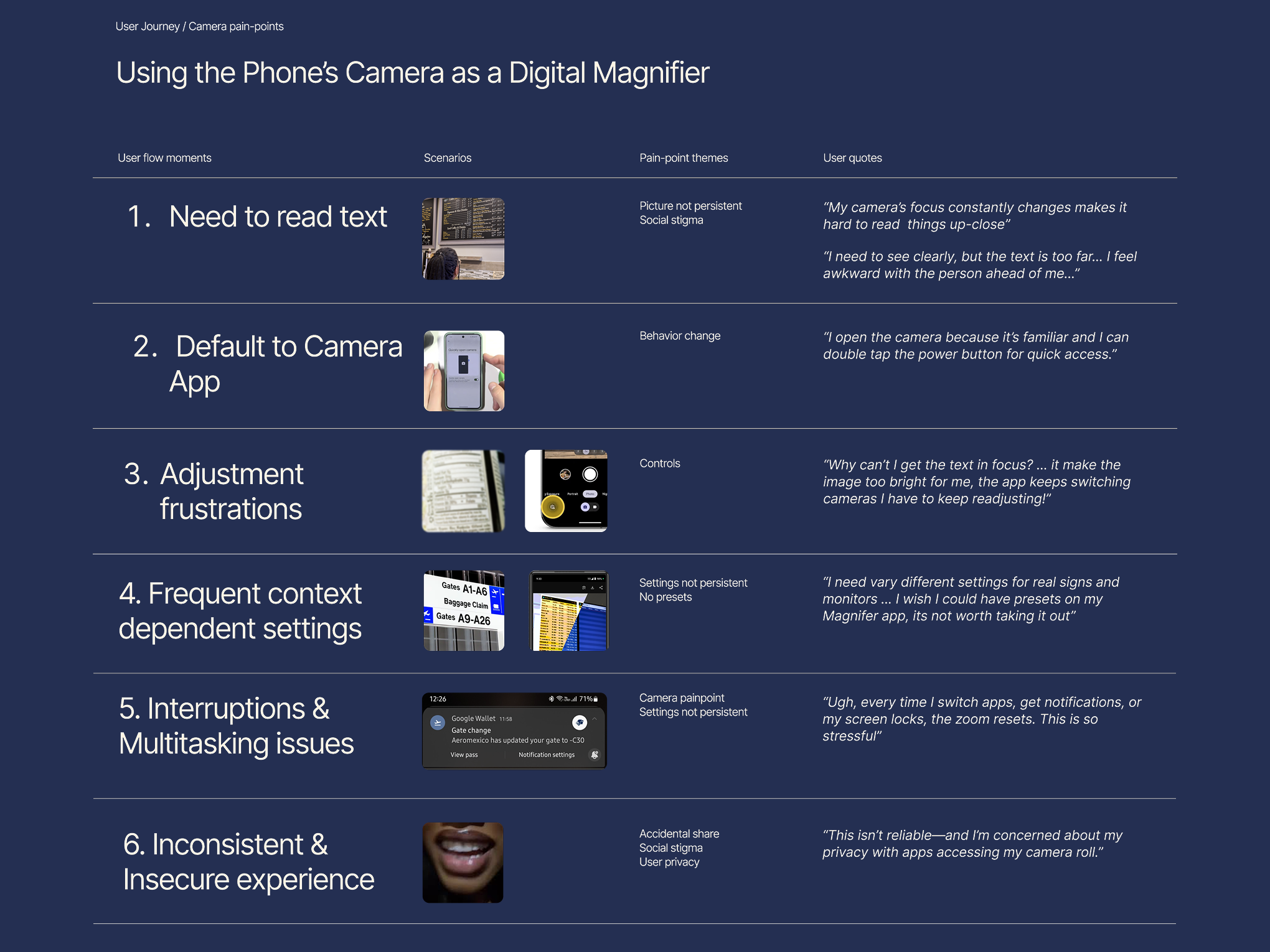 This artifact showcases how I translate user pain points into insights, visualizing scenarios that paint a clear picture to empathize with users and help define project objectives based directly on user problems.
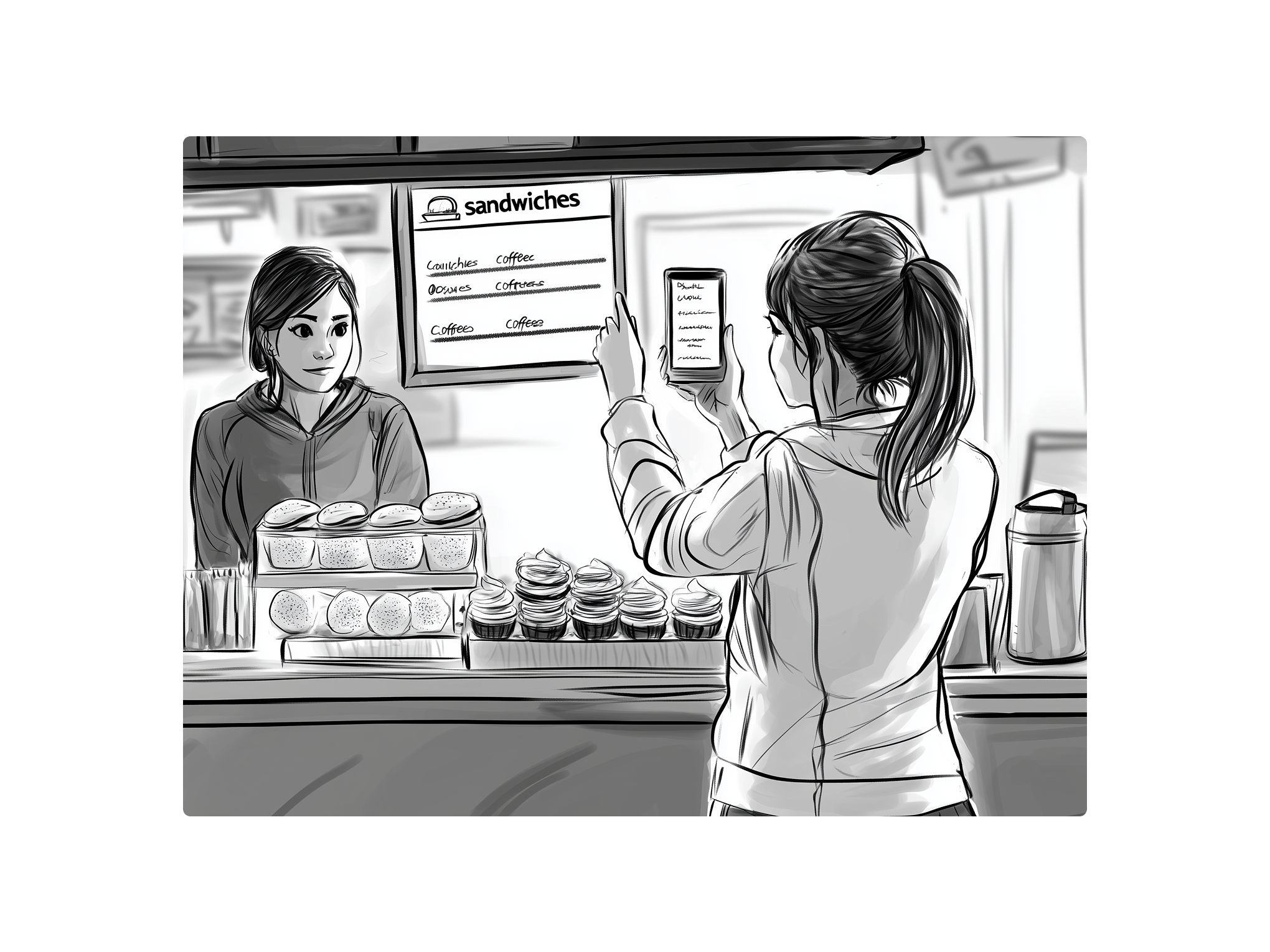 Alex needs a better way to read small text with her phone camera. She struggles with blurry close-ups, screen glare, and decorative fonts, resulting in many unusable photos in her camera roll.
Key Insights
Friction Blocks Adoption
If switching tools takes too long or resets progress, users default to the camera.
Cameras Are Built to Snap, Not See
Their controls are photo-first, not real-time assistive.
Privacy Anxiety Is Real
Users fear gallery clutter, accidental shares, and tracking in third-party apps.
Stigma Shapes Behavior
People avoid using magnifiers in public to avoid drawing attention to themselves.
My takeaway:
“Magnifiers and cameras are not reliable companions during users’ most stressful, on‑the‑go moments.”
Objectives and North Star
Goal
Make switching from the default camera to Magnifier feel like a no-brainer.
We set out to design a magnifier that’s:
- 🔄 Fast to launch — Opens instantly and remembers your last settings.
- ✋ Easy to use one-handed — Big buttons, bottom toolbar, gesture-ready.
- 🔒 Private by default — No gallery clutter, no cloud upload.
- 🌈 Assistive, not reactive — Adaptive brightness, text enhanced captures, and clarity tools.
⭐ North Star Statement:
Enable low-vision users to inspect details and read clearly anytime.
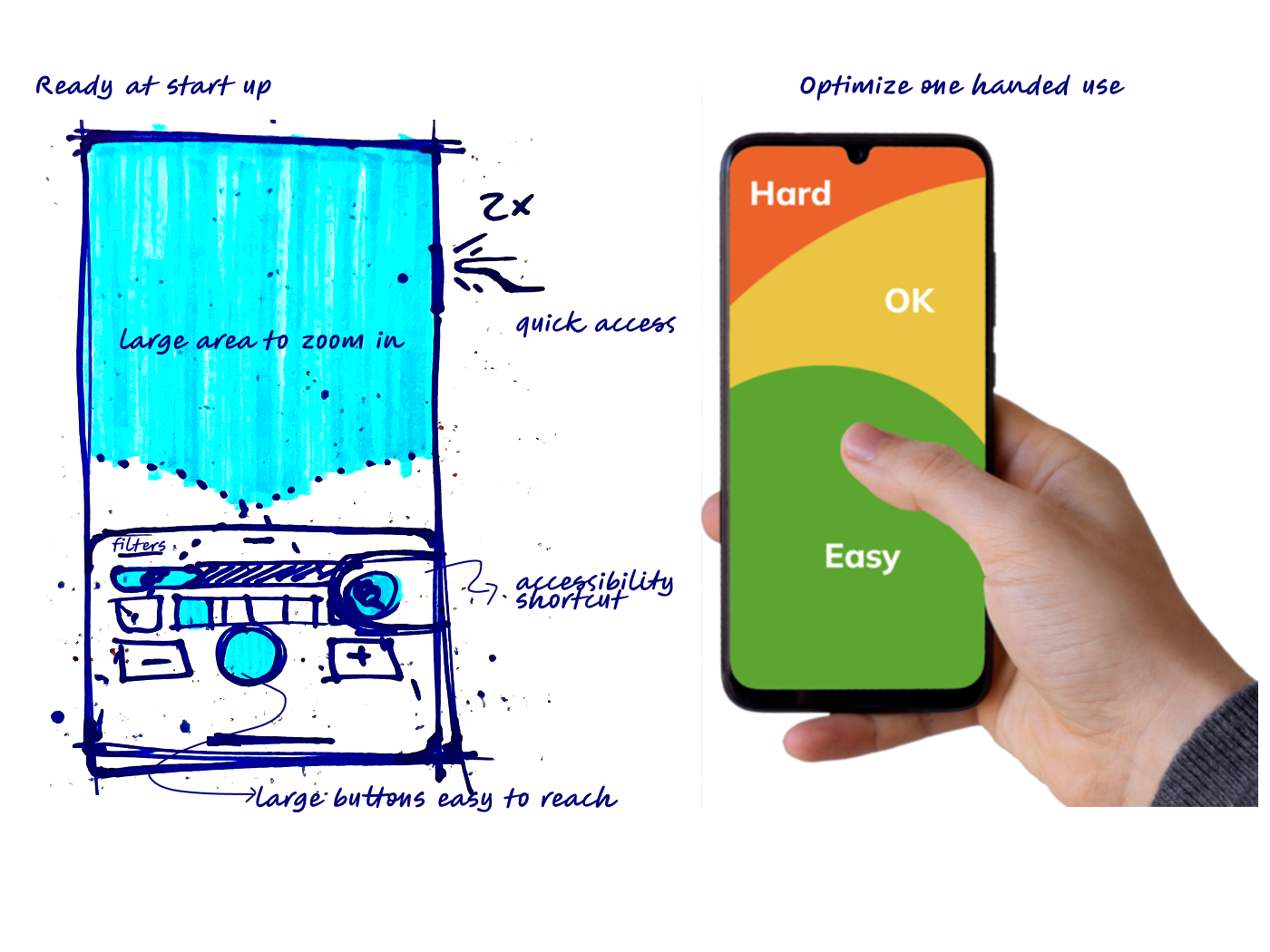 Designing for instant clarity and real-world ease: Magnifier opens ready to zoom, with large, easy-to-reach controls optimized for one-handed use — minimizing friction and maximizing usability.
Design Intent and User Needs
Design Intent
Make Magnifier feel as familiar as the camera app, but more capable.
User Needs
1. Frame: Easy zoom helpful for signage
2. Adjust: Quick filters for text contrast
3. Use: Seamless read / copy / translate
With these needs in focus, we prototyped and implemented the v1 experience.
Key Problems
Blurry text
Camera smoothing at high zoom blurs text details on zoomed-in images of signage.
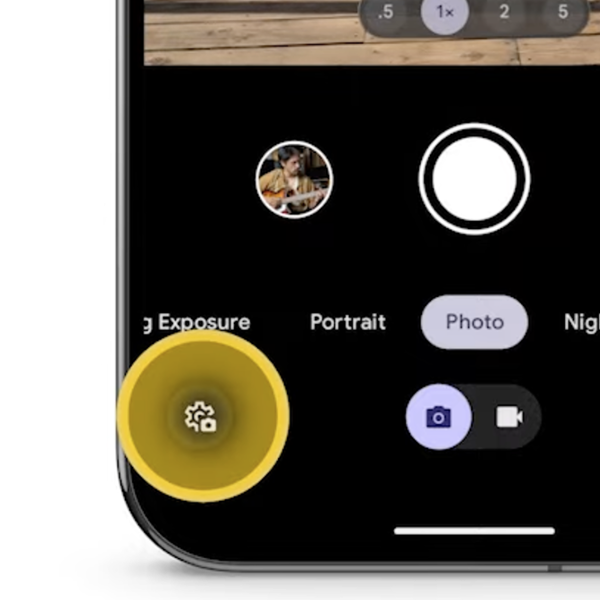
Nested setting, image adjustment controls, and primary actions
Modes and quick image adjustments demand navigation and two-handed use.
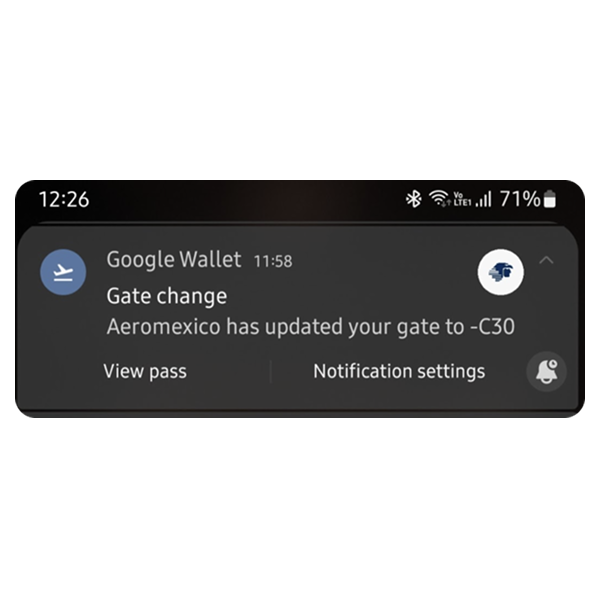
Task interruptions and multitasking
Notifications and screen locks are disruptive, forcing users to restart their tasks.
Social stigma
Using phone cameras publicly attracts unwanted attention, forcing users to be quick, leading to cluttered photo libraries and accidental sharing.
Prototypes and Solutions
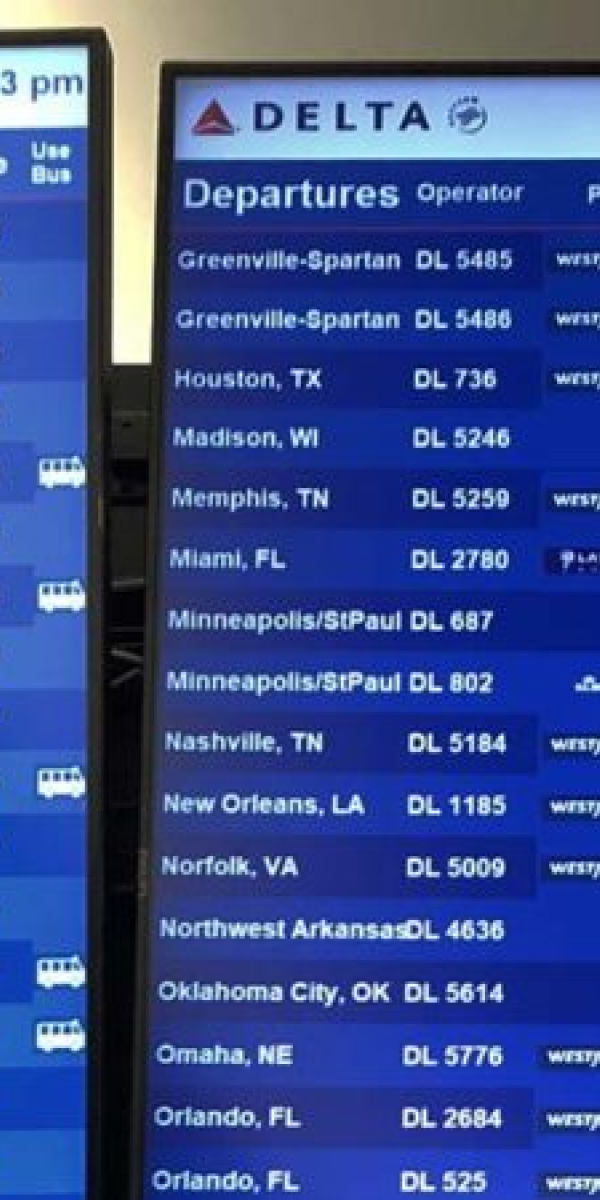
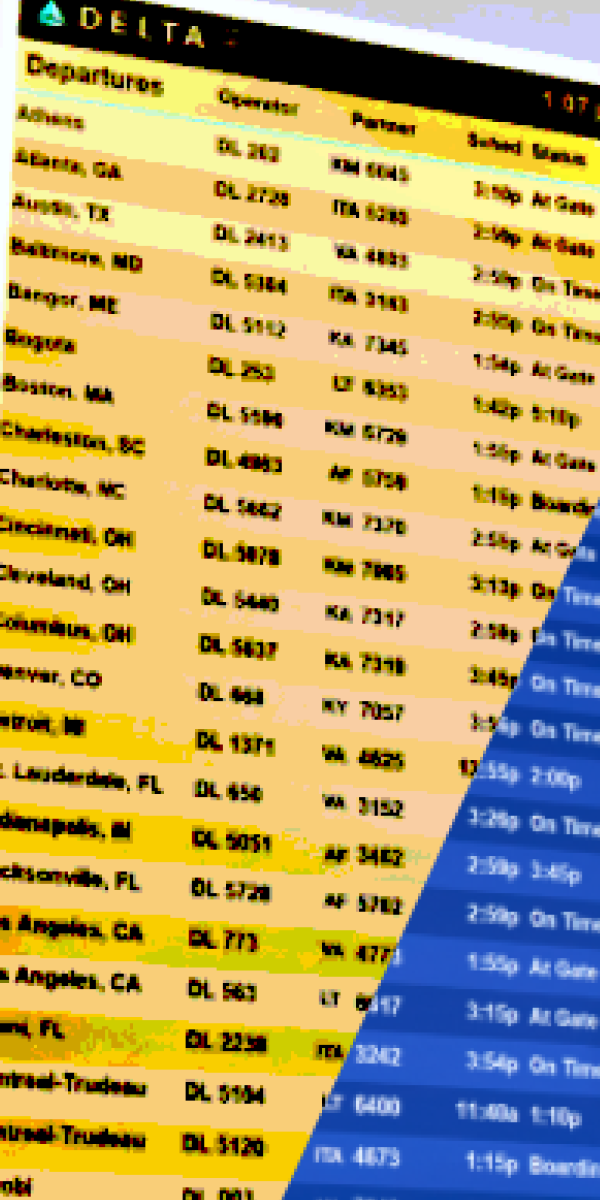
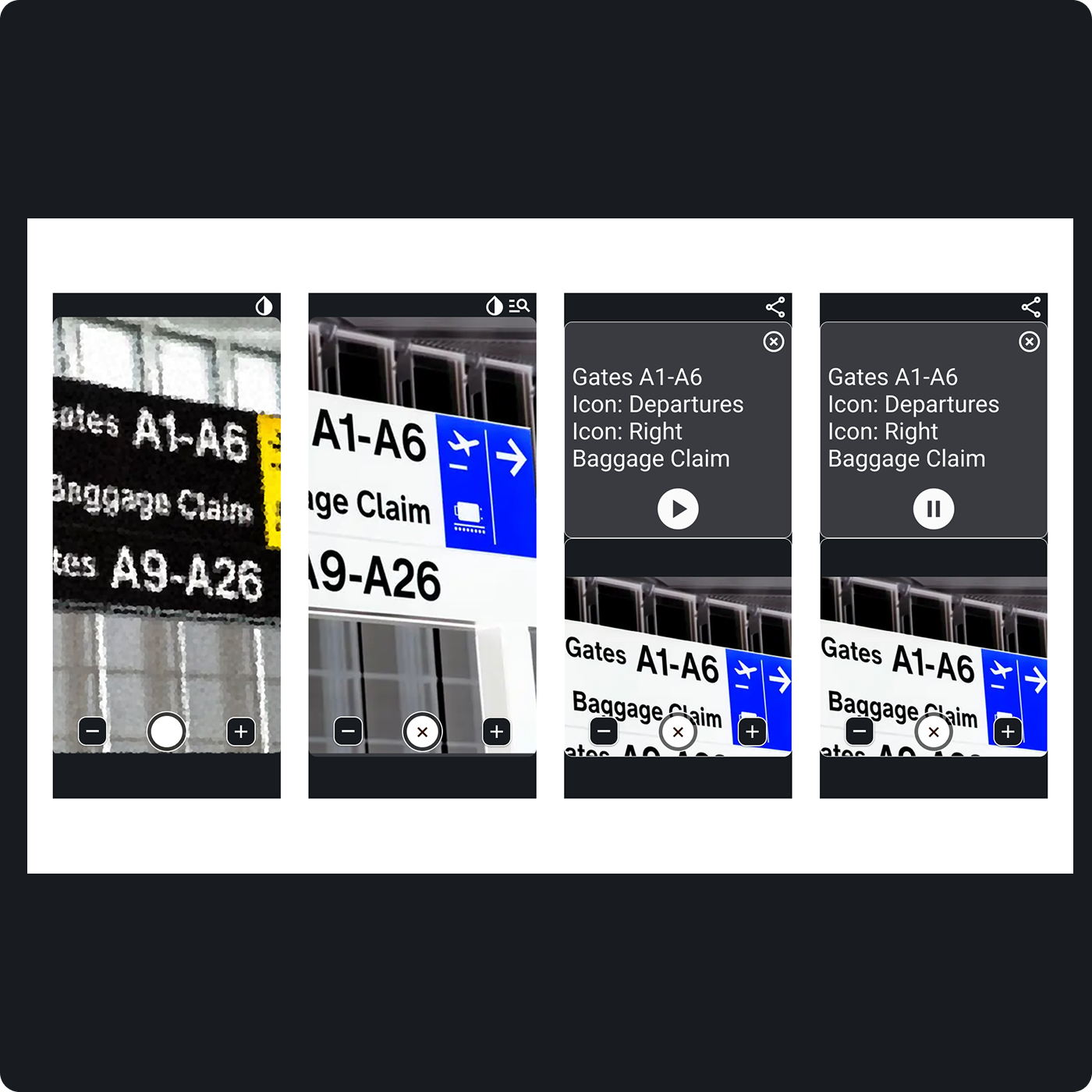
Prototype Highlight: Read Distant Signs
Read Distant Signs
- Problem
- Reading signs at a distance — like airport departure gates.
- Question
- We wanted to know if users preferred seeing the zoomed image themselves, or having the app reformat the text and icons or describe it aloud.
- Solution
- The captured image is enhanced and displayed alongside a readable text version that includes audio narration and icon descriptions.
- Outcome
- Most users preferred visual confirmation, using the zoomed image to match signs in context. This quick test helped us prioritise a large view area and focus text post-processing on legibility rather than replacement.
Solutions
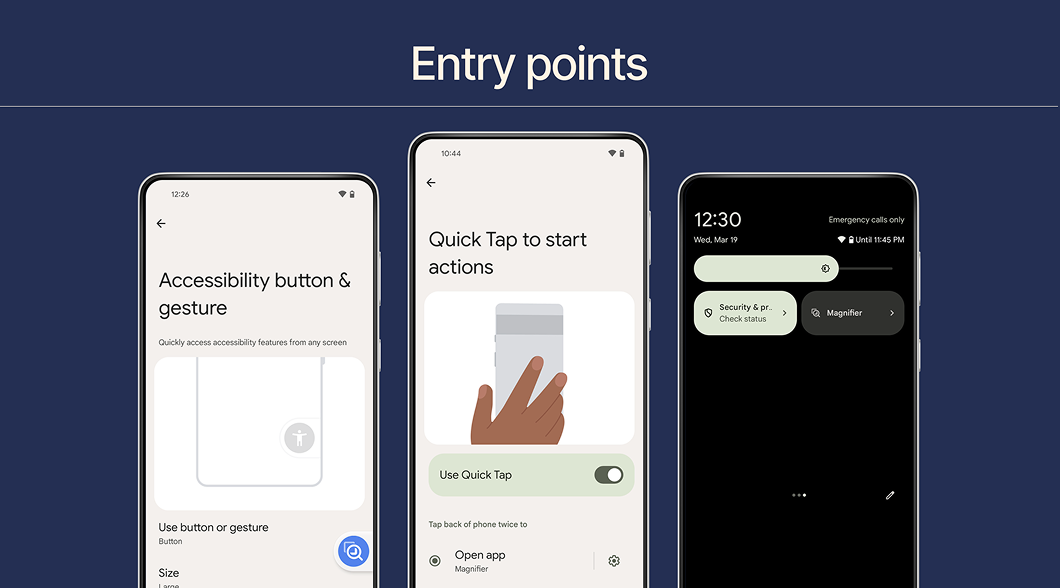
Quick Access
- Problem
- Setup friction from settings resetting between sessions.
- Solution
- Multiple native entry points — gesture shortcut, lock screen button, persistent last-used settings.
- Outcome
- Users return to Magnifier faster with no configuration overhead.
One-Handed Use
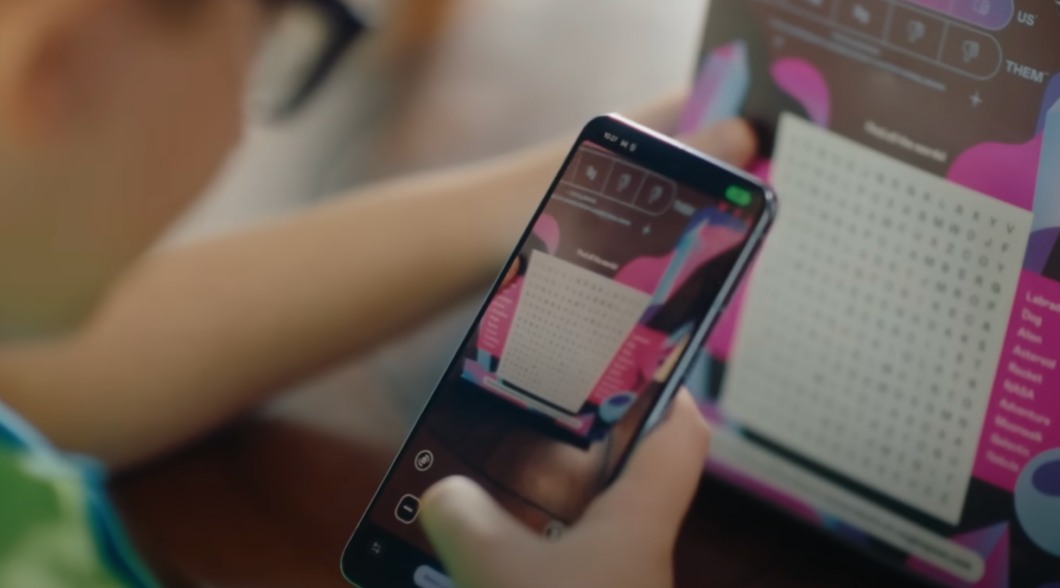
- Problem
- Top-aligned controls are hard to reach with one hand.
- Solution
- Bottom-aligned toolbars with large tap zones and long-press zoom.
- Outcome
- Easier real-world use, especially one-handed in motion.
Discreet Use
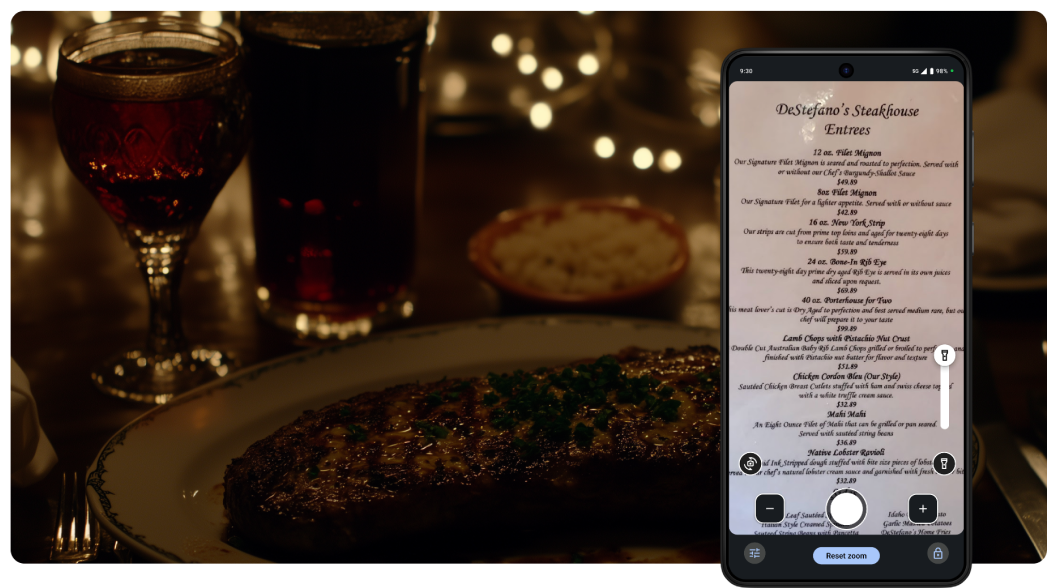
- Problem
- Bright screens draw unwanted attention in public.
- Solution
- Auto-brightness plus manual flashlight controls, dimmed by default.
- Outcome
- Dignified, low-disruption usage in any environment.
Outcomes & Impact
“Magnifier has quickly become one of the tools I use daily.”
Pixel 8 Trusted Tester
- Launched with Pixel 8 — Met pre-installed quality standards.
- 4.8★ rating at launch — Users praised clarity, speed, and practical design.
- 45% less battery usage — Compared to camera hacks, boosting adoption.
- Partnership with RNIB — Used real community feedback for continuous improvement, resulting in instructors teaching Magnifier continuing to collaborate on other features.
Project Reflection
Future Vision: Multimodal AI Assistants
The Pixel Magnifier was built on one premise: the camera already sees more than the eye can. The design work was making that capability feel personal, private, and worth trusting.
Tools like DeepMind's Project Astra are building what comes next at a different scale: a camera-based assistant that interprets the environment in real time, understands the situation surrounding what it sees, and holds context across sessions. Not a filter. An interpreter. The design challenge is the same one the Magnifier faced: making powerful technology discreet enough not to draw attention to the person using it, and robust enough to trust when it counts.
If you are co-designing tools like this with people with low vision, I would love to connect.