Playground
Design System
The tokens, primitives, and components that make this site, plus the component library it draws from.
Color Palette
The full color system. Semantic tokens for new components, brand ramps for visual identity, and --color-* aliases for the handbuilt components.
Theme colors
Aa
Aa
Aa
Aa
Aa
Aa
Aa
Aa
UI colors
Use for borders, inputs, and focus rings. Not for surfaces or text.
Border
--border Card edges, dividers
Input
--input Form field borders
Ring
--ring Focus ring — Navy 700
Brand ramp — Navy
900 #081F5D
800 #0A2872
700 #1040A8
500 #2060D0
300 #6090E0
100 #C0D4F4
Brand ramp — Lemon
900 #8A8A0A
700 #BFBF12
500 #F1F11C
300 #F6F670
100 #FAFABC
Neutral scale
950 #1A1A1A
800 #4D4D4D
500 #808080
200 #D9D9D9
100 #F2F2F2
0 #FFFFFF
Component aliases
Use for the handbuilt Astro components. Fixed aliases stay the same in both themes. Theme-aware aliases flip with the theme. Toggle the theme to see the change.
Fixed — same in light and dark
Navy
--color-navy Footer bg, code blocks, button hover
#081F5D → Navy 900
Royal Blue
--color-royal-blue Links, nav hover, hero title
#1040A8 → Navy 700
Lemon
--color-lemon SectionLabel bg, Footer name
#F1F11C → Lemon 500
Citrine (unused)
--color-citrine Defined but not used in any component
#BFBF12 → Lemon 700
Slate
--color-slate Borders, placeholders, Footer links
#808080 → Neutral 500
Theme-aware — flips with dark mode
Heading
--color-heading h1–h6, nav name, carousel title
→ --primary
Charcoal
--color-charcoal Body text, nav links, button text
→ --foreground
Surface
--color-surface Section backgrounds, preview areas
→ --muted
White
--color-white Card backgrounds, slide backgrounds
→ --background
The token pipeline
A color decision starts in Figma and reaches a live component through three layers. A brand change touches one value and cascades everywhere.
Step 1 — Figma variable (designer's source of truth)
         color/navy = #081F5D

Step 2 — Brand ramp in global.css
         --navy-900: 223.8 84.2% 19.8%;   /* HSL, no hsl() wrapper */

Step 3 — Semantic mapping in global.css (the bridge layer)
         --primary:     223.8 84.2% 19.8%;          /* "primary" maps to Deep Navy */
         --color-navy:  hsl(var(--navy-900));       /* legacy alias for handbuilt components */

Step 4 — Component use
         Custom Astro:   color: var(--color-navy);  /* Footer, WorkCard, Button */
         Basis UI:       bg-primary                 /* Tailwind utility reading --primary */
Intentionally excluded
These token groups don't exist in this system. Omitted by choice, not oversight.
Chart 1–5
--chart-1…5 Data visualization palette. Not needed — no charts in this portfolio.
Sidebar tokens
--sidebar-* Sidebar navigation system. Not needed — this site uses a simple top nav.
Typography
Fraunces for display headings. Geist for everything else.
Display
Page Title
Section Heading
Subsection
Hero title / Now statement
I'm a product designer who works at the intersection of emerging technology and human experience.
Default body text. Comfortable for long-form reading. Max-width is capped at 65ch to maintain an ideal line length.
Navigation links, footer links, secondary labels.
Section Label
Labels & mono
UI label sizes and monospace styles, matching the Figma library.
Form labels, prominent UI
Buttons, inputs, nav
Captions, meta, tags
Eyebrow / tag
const token = "var(--primary)";
Text Link
Inline link style for body copy. Apply the .text-link class to any <a> tag.
The thread across my work is keeping people in their flow. The best interfaces never pull you out of what you're doing; they blend into the task itself.
Spacing
Use for padding, margins, and gaps. A 9-step scale from 4px to 96px.
| Token | rem | px | Visual |
|---|---|---|---|
--space-2xs | 0.25rem | 4px | |
--space-xs | 0.5rem | 8px | |
--space-sm | 0.75rem | 12px | |
--space-md | 1rem | 16px | |
--space-lg | 1.5rem | 24px | |
--space-xl | 2rem | 32px | |
--space-2xl | 3rem | 48px | |
--space-3xl | 4.5rem | 72px | |
--space-4xl | 6rem | 96px |
Primitives
The smallest reusable building blocks: standalone actions and inline labels.
Button Stable
Triggers an action or navigates to a destination.
Anatomy
Variants
States
Properties
| Name | Type | Default | Notes |
|---|---|---|---|
label | string | required | Visible button text. |
href | string | — | When set, renders as <a>; otherwise renders as <button>. |
variant | "primary" | "secondary" | "primary" | Visual style. |
disabled | boolean | false | Greys out and prevents interaction. |
icon | string | — | Raw SVG string rendered on the left; replaces the right arrow. |
external | boolean | false | Adds target="_blank" and safe rel attributes for off-site links. |
download | boolean | false | Triggers a file save instead of navigation. |
Tokens used
--color-navy--color-lemon--color-surface--color-charcoal
Usage notes
- Use primary for the main action on a page. One per section.
- Use secondary for supporting actions. Multiple per section is fine.
- Pass
hrefwhen the button navigates somewhere; omit it when the button triggers an action in place. - Pass
externalwhen the link leaves the site.
View code
<Button label="Primary" href="/work" />
<Button label="Secondary" href="/about" variant="secondary" />
<Button label="External" href="https://example.com" external />
<Button label="Resume" href="/resume.pdf" download />
Section Label Stable
Introduces a major section with a small lemon pill.
Anatomy
Selected Work
Properties
| Name | Type | Default | Notes |
|---|---|---|---|
label | string | required | Pill text. Keep it short (1 to 3 words). |
Tokens used
--color-lemon--color-navy
Usage notes
- Use as the introduction to a major section, above the section heading.
- Lemon is reserved for this purpose at full saturation. It feels like a signal because it appears nowhere else.
View code
<SectionLabel label="Selected Work" />Back Link Stable
Returns the visitor to the previous page.
Anatomy
Variants
Properties
| Name | Type | Default | Notes |
|---|---|---|---|
href | string | required | Destination URL. Use "#" as a placeholder when JavaScript will set it at runtime. |
label | string | "Back" | Text shown after the arrow. |
hidden | boolean | false | Renders with the HTML hidden attribute. Used for the referrer-aware variant on this page. |
class | string | — | Extra class applied alongside .back-link. Useful as a JS hook. |
Tokens used
--color-royal-blue--color-heading
Usage notes
- Place at the top of a page that's reached from a parent page (a work case study, a writing article, the playground).
- Use the default
"Back"label most of the time. Override only when the parent context is ambiguous.
View code
<BackLink href="/work" />
<BackLink href="/work" label="Back to work" />
Cards
Content-bearing surfaces. Use for grids of work, writing, or field notes.
Project Card Stable
Displays a project as an image with a title beneath.
Anatomy
Variants
With image
[ image ]
No image (placeholder)
Properties
| Name | Type | Default | Notes |
|---|---|---|---|
title | string | required | Card heading shown below the image. |
image | string | — | Image src. When omitted, a placeholder appears. |
Tokens used
--color-surface--color-charcoal--color-heading
Usage notes
- Use in a flex row to display multiple projects side by side.
- Omit the image only during development or when the project doesn't have a cover yet.
View code
<ProjectCard title="Project title" image="/images/work/project.png" />Field Note Card Stable
Two-column card showing a field note body alongside an artifact preview.
Anatomy
Card title
First paragraph. Short description of the experiment or note.
Second paragraph. Optional follow-up detail.
Tools:
Explore experiment Tool one Tool two
Properties
| Name | Type | Default | Notes |
|---|---|---|---|
title | string | required | Card heading. |
body | string | required | Long copy. Paragraphs separated by blank lines. |
tools | Tool[] | required | List of tool badges. Empty array hides the row. |
toolsLabel | string | "Tools:" | Override the tools-row label. |
exploreHref | string | — | When omitted, the explore link is hidden. |
exploreLabel | string | "Explore experiment" | Override the explore link label. |
artifact | Artifact | required | Right-column artifact preview. |
Tokens used
--color-surface--color-charcoal--color-royal-blue
Usage notes
- Use on the Field Notes archive page (
/field-notes) for entries that have a paired experiment. - Stack vertically with a comfortable gap. Body reads left, artifact reads right on desktop; collapses to one column on mobile.
View code
<FieldNoteCard
  title="Card title"
  body="Paragraph one.\n\nParagraph two."
  tools={[{ label: "Figma" }]}
  exploreHref="/writing/some-slug"
  artifact={{ image: "/images/x.png", alt: "", caption: "Caption" }}
/>
Writing Card Stable
Link card to a writing entry, with an optional 'New' badge.
Anatomy
Variants
Properties
| Name | Type | Default | Notes |
|---|---|---|---|
href | string | required | Destination URL. |
image | string | — | Cover image src. When omitted, a placeholder appears. |
alt | string | — | Alt text for the image. |
title | string | required | Card heading. |
desc | string | required | Short description shown under the title. |
isNew | boolean | false | Adds a lemon "New" badge in the top-right of the image. |
Tokens used
--color-surface--color-charcoal--color-lemon--color-navy
Usage notes
- Use on the home page Field Notes section and the
/field-notesarchive. - Pass
isNewfor entries within the recency window so visitors can see what just shipped.
View code
<WritingCard
  href="/writing/some-slug"
  image="/images/writing/cover.png"
  alt="Cover"
  title="Article title"
  desc="One-line description."
  isNew={true}
/>
Work Card Stable
Flip card showing a project thumbnail on the front and case details on the back.
Anatomy
Channels:
voice
screen
Case Detail
Back face heading
First paragraph on the back face.
Second paragraph.
Outcome
Stat
description
Tap to return
Properties
| Name | Type | Default | Notes |
|---|---|---|---|
id | string | required | Unique id used for the flip interaction and lightbox target. |
pattern | string | required | Small label above the title (e.g. "Learnable Efficiency"). |
title | string | required | Project title shown on the front face. |
backHeading | string | required | Heading shown on the back face after flipping. |
backParagraphs | string[] | required | Body paragraphs on the back face. |
stats | Stat[] | required | Highlight stats on the back face. |
image | string | required | Front-face thumbnail. |
imageAlt | string | "" | Image alt text. Empty marks it decorative. |
channels | Channel[] | required | Channel dots (voice, screen, camera, gesture, gaze). |
lightboxDesc | string | required | Description shown when the lightbox opens. |
eager | boolean | false | Hints the image loader to fetch eagerly for above-the-fold cards. |
Tokens used
--color-navy--color-surface--color-royal-blue--color-citrine
Usage notes
- Use in the Selected Work section on the home page.
- Click the card to flip; click the expand button to open the lightbox.
- Set
eageron the first one or two cards that appear above the fold to speed up first paint.
View code
<WorkCard
  id="some-id"
  pattern="Pattern label"
  title="Project title"
  backHeading="Heading on the back"
  backParagraphs={["First paragraph", "Second paragraph"]}
  stats={[{ value: "First", desc: "of its kind" }]}
  image="/images/work/thumb.png"
  channels={[{ type: "voice", label: "voice" }]}
  lightboxDesc="Description when expanded."
/>
Other Components
Carousel Stable
Manually controlled image carousel with arrow buttons, pagination dots, and keyboard navigation.
Anatomy
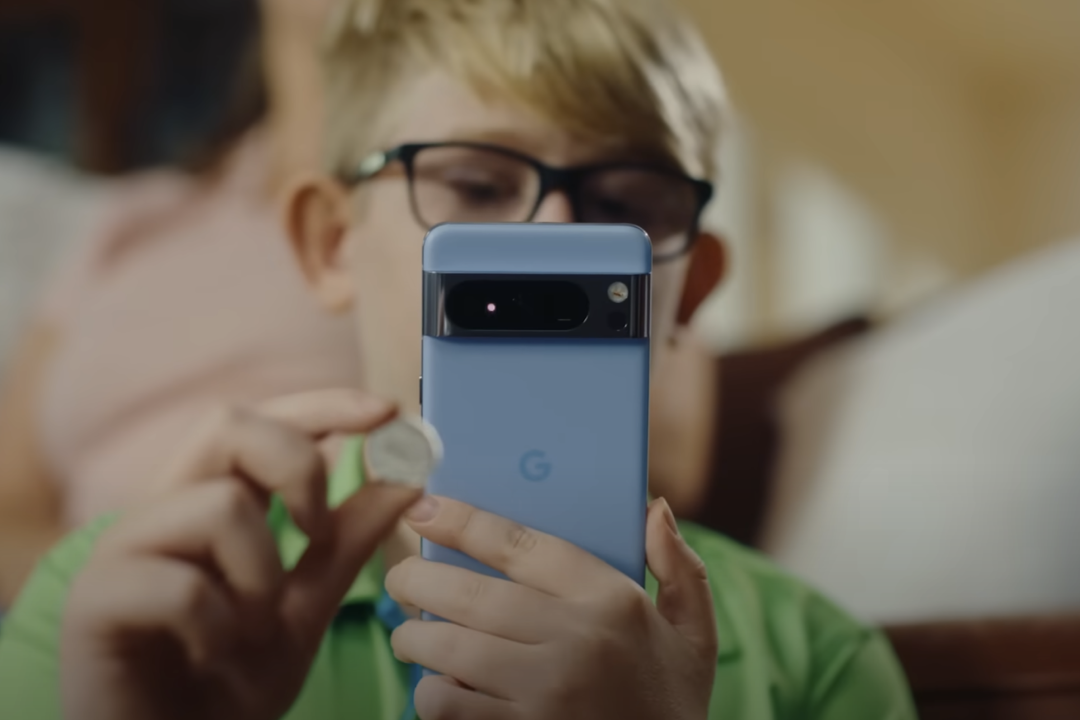
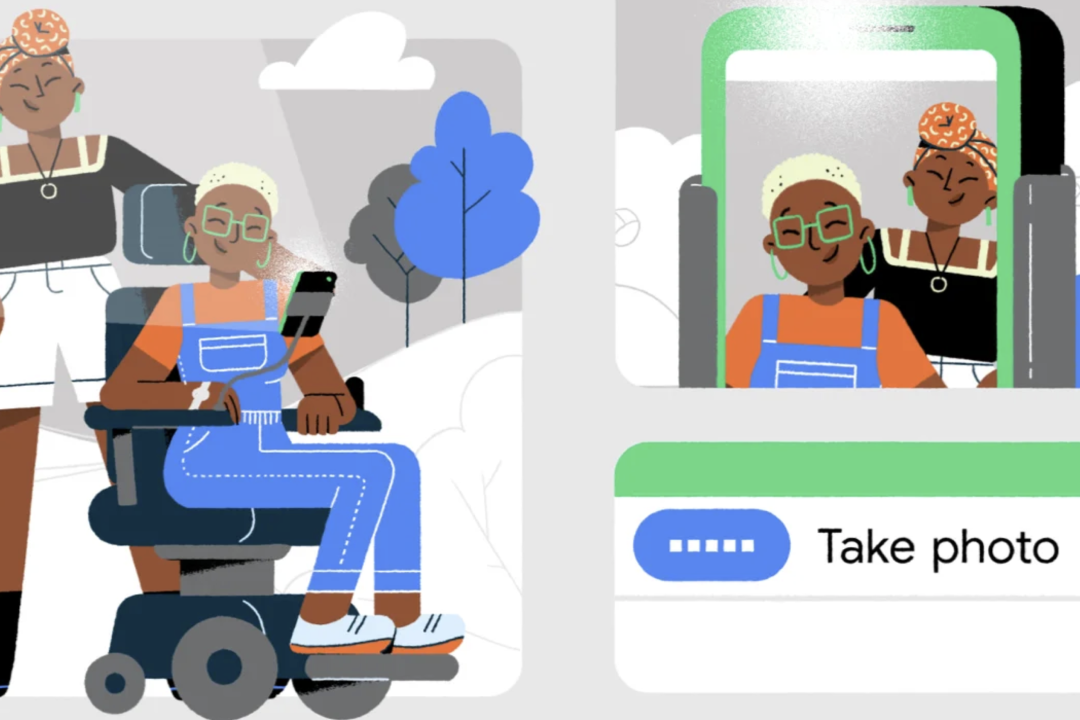
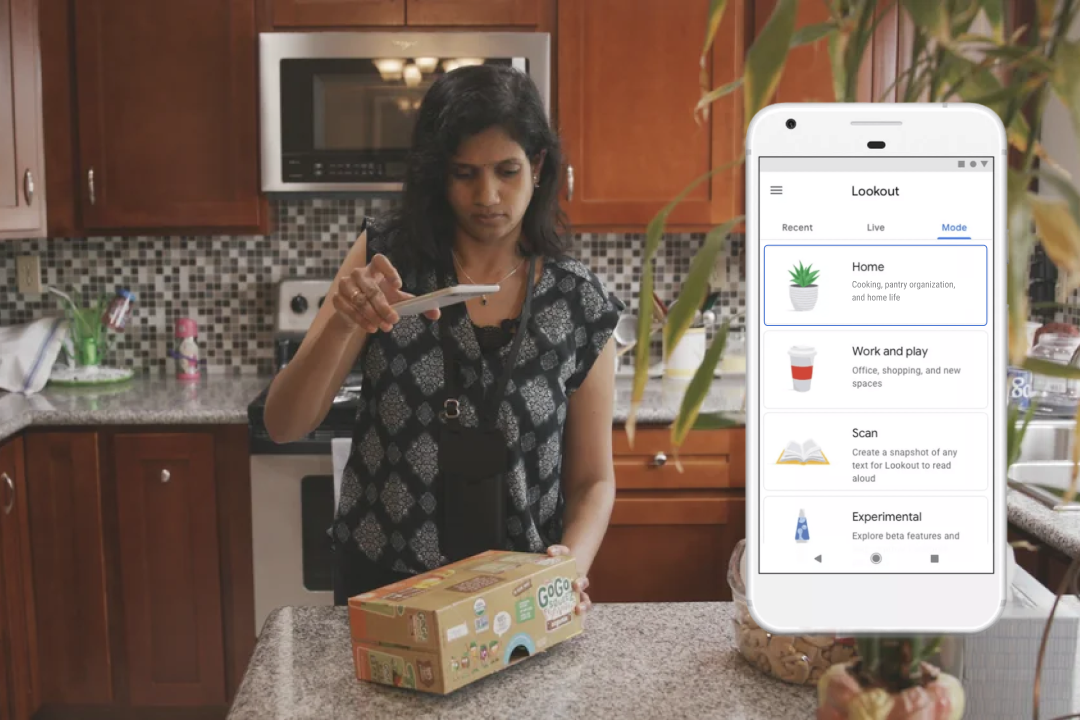
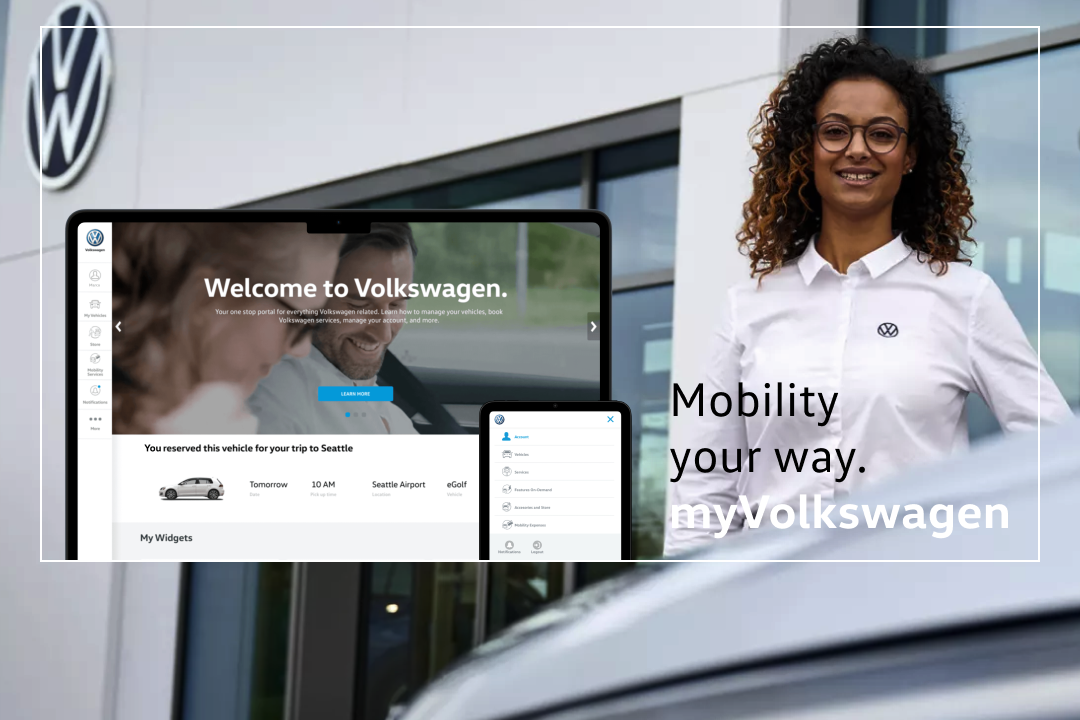
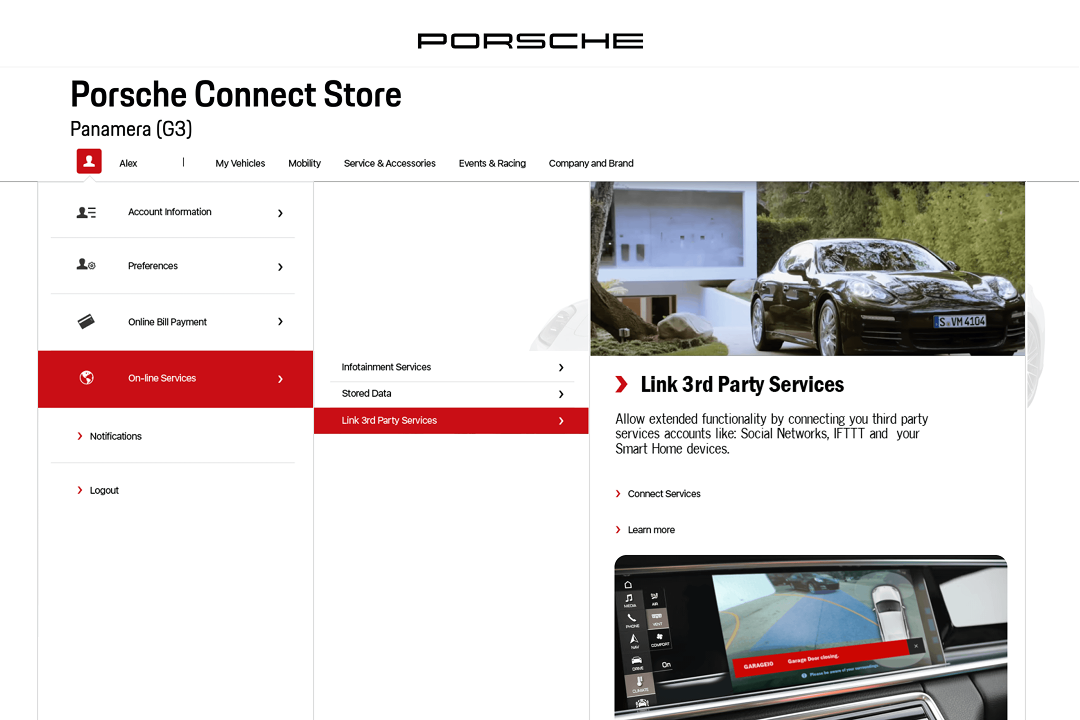
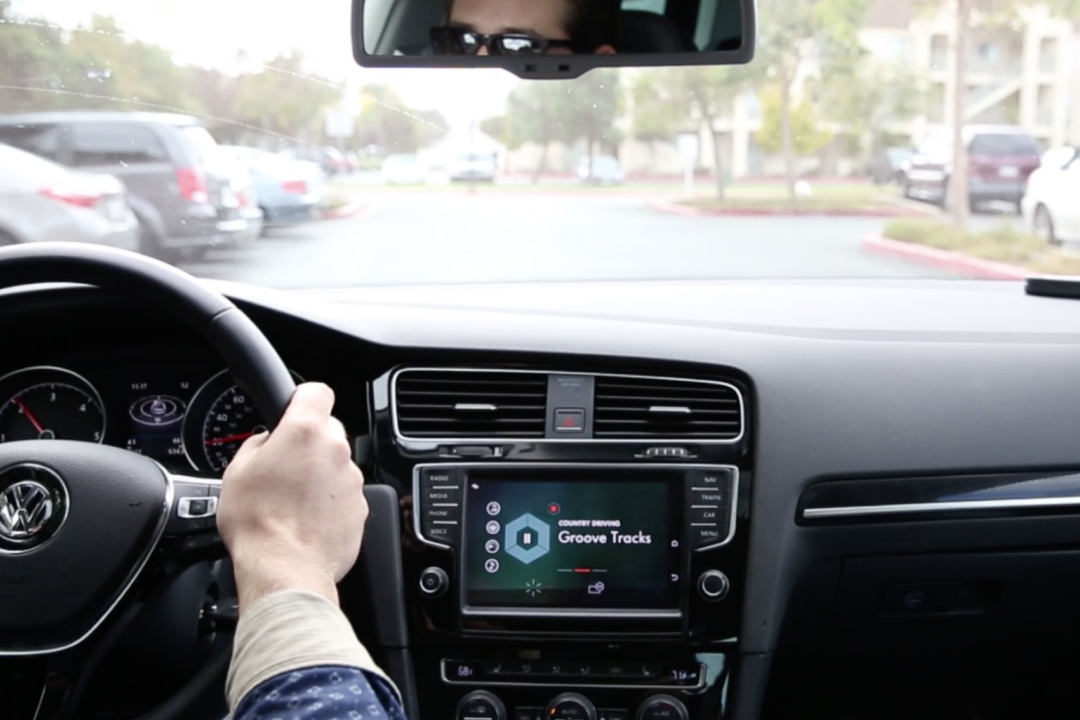
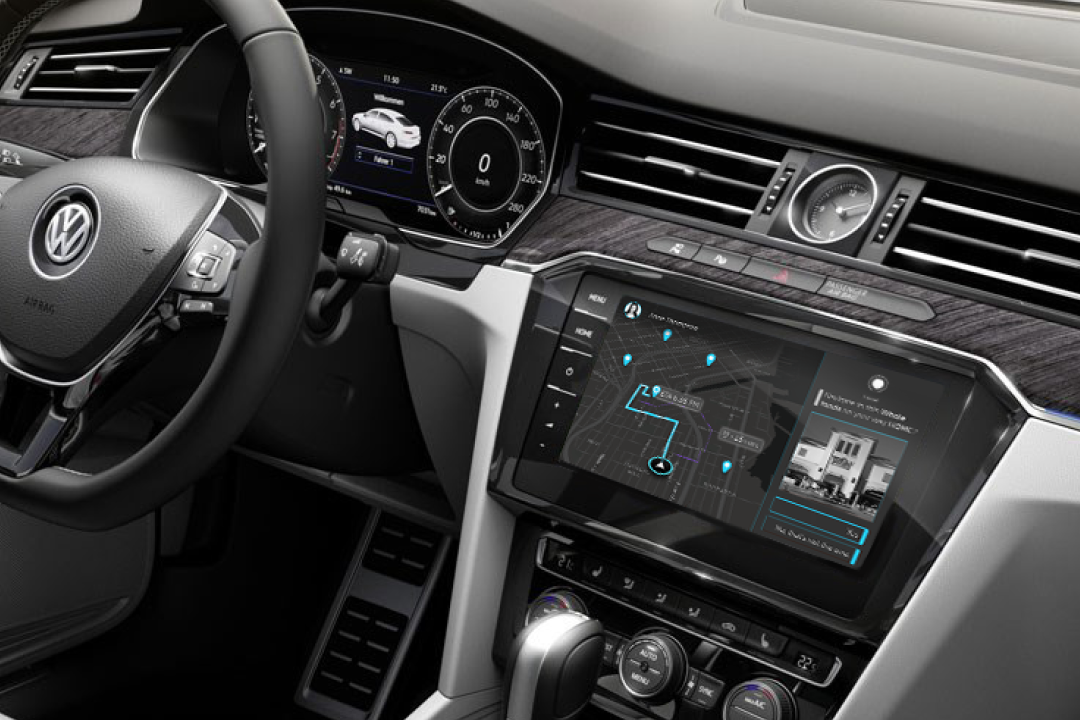
Properties
| Name | Type | Default | Notes |
|---|---|---|---|
No props. Slide content is defined inside Carousel.astro as a slides array (image, title, subtitle, optional href, optional cta). | |||
Tokens used
--color-surface--color-charcoal--color-heading--color-lemon
Usage notes
- Use sparingly. A carousel hides content behind interaction, so reach for it only when a sequence of slides actually helps the reader.
- Navigation: arrow buttons, pagination dots, or left/right arrow keys. No auto-scroll, so the visitor stays in control (WCAG 2.2.2).
- To change the slides, edit the
slidesarray at the top ofCarousel.astro. If you need this carousel in more than one place with different content, refactor it to accept aslidesprop first.
View code
<Carousel />Theme Toggle Stable
Sun/moon button that switches between light and dark mode.
Anatomy
Properties
| Name | Type | Default | Notes |
|---|---|---|---|
No props. The button reads data-theme on <html> and flips it on click. | |||
Tokens used
--color-charcoal--color-heading
Usage notes
- Place inside the site nav. The button in this preview is visual only; the live one in the top nav is what actually changes the theme (only the first
.theme-toggleon the page is wired by the inline script). - On first load, the site reads
prefers-color-schemeas the default. The toggle lets the visitor override it; the choice is saved tolocalStorage. - If the visitor's chosen theme matches their OS preference, the override is cleared so future OS changes take effect naturally.
View code
<ThemeToggle />Site Patterns
Recurring layouts that appear on every page.
Basis UI Components
Components from Basis UI. Status dots below show what's in use.
Component gallery
Button — src/components/ui/forms/Button.astro
Used in writing pages for the lightbox close button.
Variants
Sizes
States
Note: ghost and outline buttons show --accent (Lemon) on hover
Card — src/components/ui/display/card/
Available, not currently in use.
Divider — src/components/ui/layout/Divider.astro
Available, not currently in use.
Always uses --border — flips automatically in dark mode.
No accent variant in the component; use a wrapper with a colored background for accent rules.
thickness="1" (default)
Content above Content belowthickness="4"
Content above Content belowdirection="vertical" (needs a flex-row parent)
Left content
Right content
Badge — src/components/ui/feedback/Badge.astro
Used in Field Note cards for tool labels.
Default Secondary Destructive Outline